Calendar.
Appointments, month/week/day views, reminders, Google sync, and public booking.
The Calendar holds your appointments alongside the to-dos that are due each day, and can optionally stay in sync with your Google Calendar so you only have to check one place.
Views
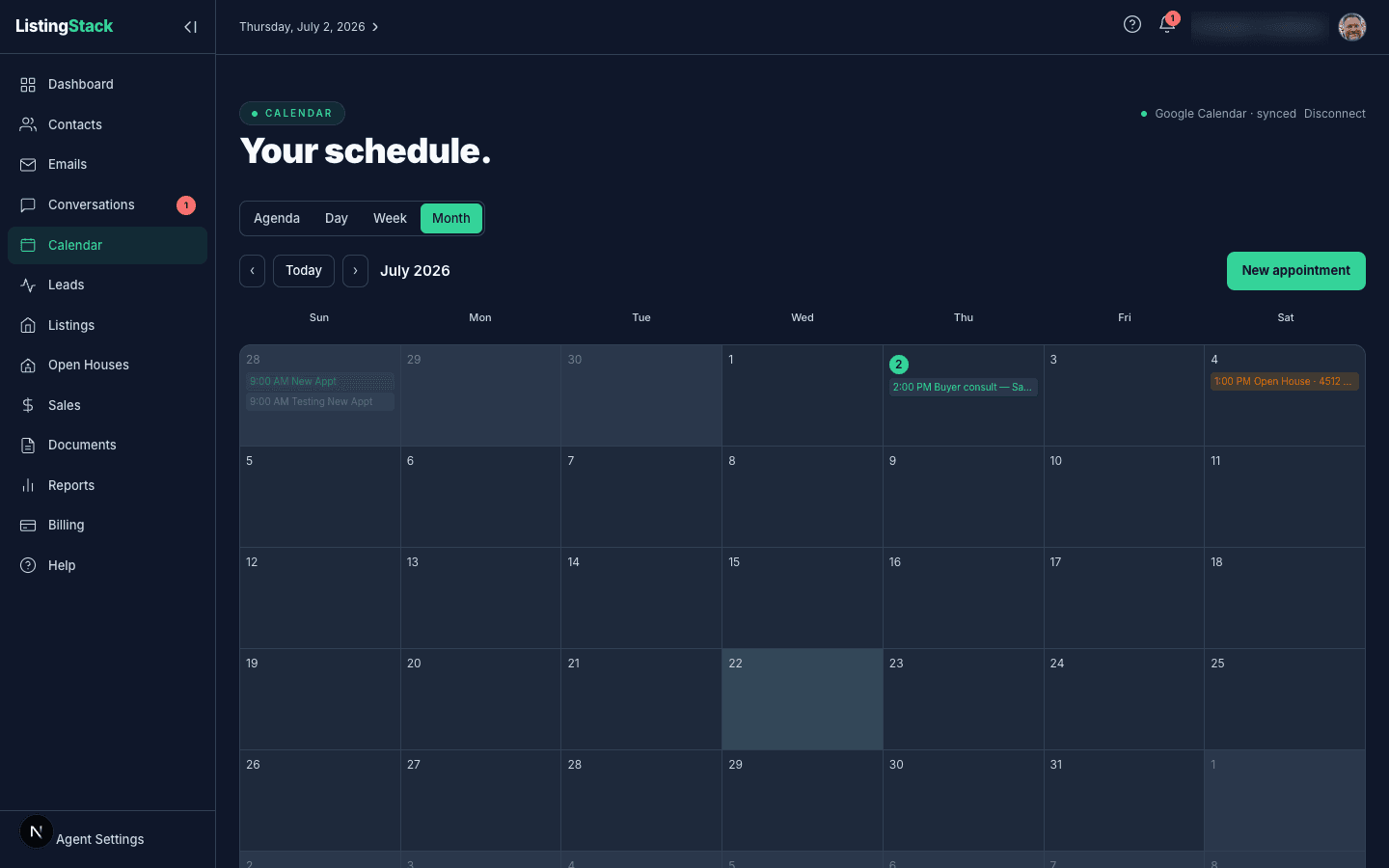
There are four views, switchable from the top of the page:
- Agenda — one day at a time: your appointments for that day, plus a to-do panel underneath (Past due, Due, upcoming, and Done).
- Day — a time-grid for a single day. On a phone or tablet, swipe left or right across the day to jump to the next or previous day.
- Week — a time-grid across the week.
- Month — the default view. Click any day to create an appointment on it, or click an existing chip to open it.
An Open houses toggle sits next to the view switcher: flip it on to filter the calendar down to just your open houses, or leave it on All to see every appointment. Your choice sticks between visits.
ListingStack remembers whichever view you used last, so it opens back to that view next time.
In Agenda view, the Past duesection only carries incomplete to-dos forward when you're looking at today — step back to a previous day and you'll see just that day's own activity, not the running backlog.
Creating and editing appointments
Click New appointment in any view, or click directly on a day in Month view, to open the appointment form. Fields:
- Title and an All day toggle
- Start and End — date and time, or date only for all-day appointments
- Location — free text; shown with a map link on the appointment
- Notes
- Contact — search and link an existing contact
- Listing — optionally attach one of your listings
As you set the Start and End, the form live-checks for other appointments that overlap it and warns you inline, naming the conflicting appointments (up to three, plus a "+N more" if there are additional ones). It's only a warning — nothing stops you from saving anyway if the double-booking is intentional.
Clicking an existing appointment opens its detail card, where you can jump into Edit or Delete (delete asks for confirmation first). Open houses appear on the calendar too, but clicking one takes you straight to the open house page instead of this detail card.
On the Day and Week time-grids you can drag an appointment to reschedule it— grab it and drop it at a new time (in Week view you can also move it to a different day). On a phone or tablet, press and holdthe appointment for a moment to pick it up, then drag. Dropping it saves the new time right away — and pushes the change to Google if you're connected — with a brief Undobutton in case you want to put it back. Open houses and all-day appointments can't be dragged.
Linked contacts and listings
An appointment with a contact attached shows that contact's name as a link straight to their profile, both in the day list and on the detail card. A location or a linked contact's address gets a one-click map link next to it. A linked listing shows its address on the detail card so you can see at a glance which property the appointment is for.
Availability & Calendar Settings
Calendar Settings — reached via the Settings link next to New appointmentin any view (a gear icon on mobile) — is where you set the days, hours, and default appointment lengths (showing vs. call) that both the AI Concierge and your public booking widget can offer. It also holds your timezone. Anything you're already booked for during those hours is automatically excluded from what gets offered.
Public booking
Visitors to your public site can book time directly onto your calendar, using the same hours and appointment lengths above. It's on by default; the toggle to turn it off (Let visitors book a call from your website) lives in the Public booking section of Calendar Settings.
When it's on, a Book a call button appears on your public site (see the Public Agent Site guide). Clicking it opens a picker showing real open times over the next two weeks. The visitor picks a time, enters their name, email, and optionally phone, and confirms. That single click:
- Creates the appointment on your calendar — and pushes it to Google Calendar if you're connected
- Captures the visitor as a lead in your pipeline, matched to an existing contact by email or created fresh, exactly like a contact-form submission
- Emails the visitor a confirmation with the date, time, and time zone
- Notifies you by email and in-app, the same as any other inbound lead
If two visitors land on the same open time at once, whoever confirms first gets it — the other sees "That time was just taken" and is prompted to pick again, so a double-booking from your own public site can't happen.
Google Calendar sync
The connect control lives at the top of Calendar Settings; the Settings link on the Calendar page itself carries a small dot showing connection status at a glance (green once connected, amber if a sync run is failing). If Google sync isn't available for your workspace yet, Calendar Settings shows "Google sync coming soon" and the rest of the calendar works normally without it. Where it's available, click Connect Google to authorize; once connected, that spot shows your connected account and a synced status instead.
Sync runs both directions:
- Appointments you create, edit, or delete in ListingStack are pushed to your Google Calendar right away.
- Events on your Google Calendar are pulled in on a recurring sync and appear on your ListingStack calendar tagged with a Google badge, distinct from the ListingStack badge on appointments created here.
If Google revokes access, that spot shows Reconnect Google; if a sync run fails, it shows "sync failed, retrying" next to your account and picks back up on the next attempt. You can disconnect at any time from the same control.
Appointment reminders
ListingStack emails you a reminder ahead of each timed appointment (all-day appointments and cancelled ones are skipped): one heads-up email while the appointment is still more than a couple of hours out, and a second, closer email as it approaches. Each reminder also lands as an in-app notification linking back to the calendar.
The email side of this can be turned off from the Notifications section of Calendar Settings — the in-app notification still fires either way, so you never lose the record entirely.
You can also send your clients their own reminder. It's off by default; turn it on with the Email clients an appointment reminder toggle in the Notifications section of Calendar Settings. Once it's on, an Also send a same-day reminder option lets you add a second email: None, 1 hour before, or 2 hours before the appointment.
The reminder goes to the appointment's linked contact, and only if that contact has an email address on file. Appointments with no linked contact, or a contact without an email, don't send anything. Cancelled appointments never remind, and this is email only, there's no SMS version.
The first email goes out 24 hours ahead of the appointment, or right away for appointments created closer to the start time; the optional second one follows at whichever same-day offset you chose. Each one is sent from your name, states the appointment's title, time (in the appointment's own time zone), and location when one is set, and invites the client to just reply if anything changes. Replies go straight to you. The description field is never included, so keep private notes there.